 Skip to content

Raspberry Pi 5 with Twister OS opens new doors for tech enthusiasts, offering a seamless blend of power and versatility. This powerful combination provides a responsive, easy-to-use experience, and it is well-suited to everything from software development to creative media consumption.
Raspberry Pi 5 provides significant processing power and support for the operating system of your dreams. This versatility makes it an attractive platform for both novice and experienced developers.
Easily jump into projects, taking advantage of the friendly interface and powerful tools at your disposal that make Twister OS so appealing.
What is Twister OS?
Twister OS is a custom, full-featured Linux distribution created specifically for Raspberry Pi devices. This operating system utilizes the Twister OS patcher to optimize the performance and power consumption of Single-Board Computers (SBC). Leveraging the ARM architecture truly unleashes its potential, making it a top choice for users.
Most users prefer Twister OS over the default Raspberry Pi OS due to its improved performance and robust feature set. This operating system elevates the Raspberry Pi experience, making it the ideal option for both home and business users seeking a more productive and flexible computing environment. With the preferred Ubuntu version integrated, it offers a seamless transition for those familiar with Ubuntu.
Overview of Twister OS
Twister OS does not hide its pride in being an easy-to-use platform with a highly polished interface. The design invites users from all experiences and backgrounds. No matter if they are used to Linux, Windows, or Mac, they will be at ease moving around the OS.
It features great compatibility with several Raspberry Pi models, giving it the potential to reach a wide range of users. It’s a passionate community that continues to push development forward for Twister OS. They stop at nothing to make it better and more polished every day and to have frequent updates.
This community-driven model helps to keep the OS agile, allowing it to adapt quickly to changes in technology and user demands.
Key Features and Capabilities
Twister OS really shines with 11 different desktop themes to choose from. These themes allow users the opportunity to customize their experience to better fit their individual needs. These themes make for a very beautiful and fun user interface.
Combined with hardware-accelerated OpenGL ES, Twister OS is a powerhouse ready to tackle graphics-intensive apps. Twister OS comes with a generous selection of essential applications that are pre-installed. You’ll see other resources like LibreOffice for productivity and RetroPie for gaming, covering the needs of all types of users.
It has a software store named Pi Apps. This store lets you easily install applications that were made for Raspberry Pi.
Comparison with Other Operating Systems
| Feature | Twister OS | Raspberry Pi OS | Ubuntu |
|---|---|---|---|
| User Interface | Polished and customizable | Basic and minimalistic | Polished but resource-heavy |
| Performance | Optimized for ARM | Basic optimization | More suited for x86 systems |
| Pre-installed Apps | Extensive | Limited | Moderate |
| Community Support | Strong | Moderate | Strong |
Twister OS shines with its plethora of pre-installed applications and strong community support. What makes this platform exceptional is its unique proclivity to gaming and productivity.
It has some fantastic features, including integrated emulators, including Box86, and the ability to run x86 Windows software with Wine and Box86. Twister OS removes the complexity of advanced configuration tasks such as overclocking with tools such as CommanderPi.
It makes it possible to play streaming DRM-protected content via Chromium Media Edition. Nearly 80% of users experience a marked improvement in their SBC’s performance, underscoring its proven efficacy and popularity.
Installing Twister OS on Raspberry Pi 5
1. Gather Necessary Components
In addition to installing Twister OS on your Raspberry Pi 5, the right peripherals make all the difference. Here’s a comprehensive list to get you started:
- The centerpiece of your setup. Make sure it’s compatible with Twister OS.
- A reliable 5V/3A power adapter is crucial for stable performance.
- Opt for a high-quality Class 10 card with at least 16GB capacity. Using a high-quality card minimizes the chance of data corruption and increases performance.
- Necessary for connecting to a monitor or TV.
- Keyboard and Mouse: Essential peripherals for navigating the OS.
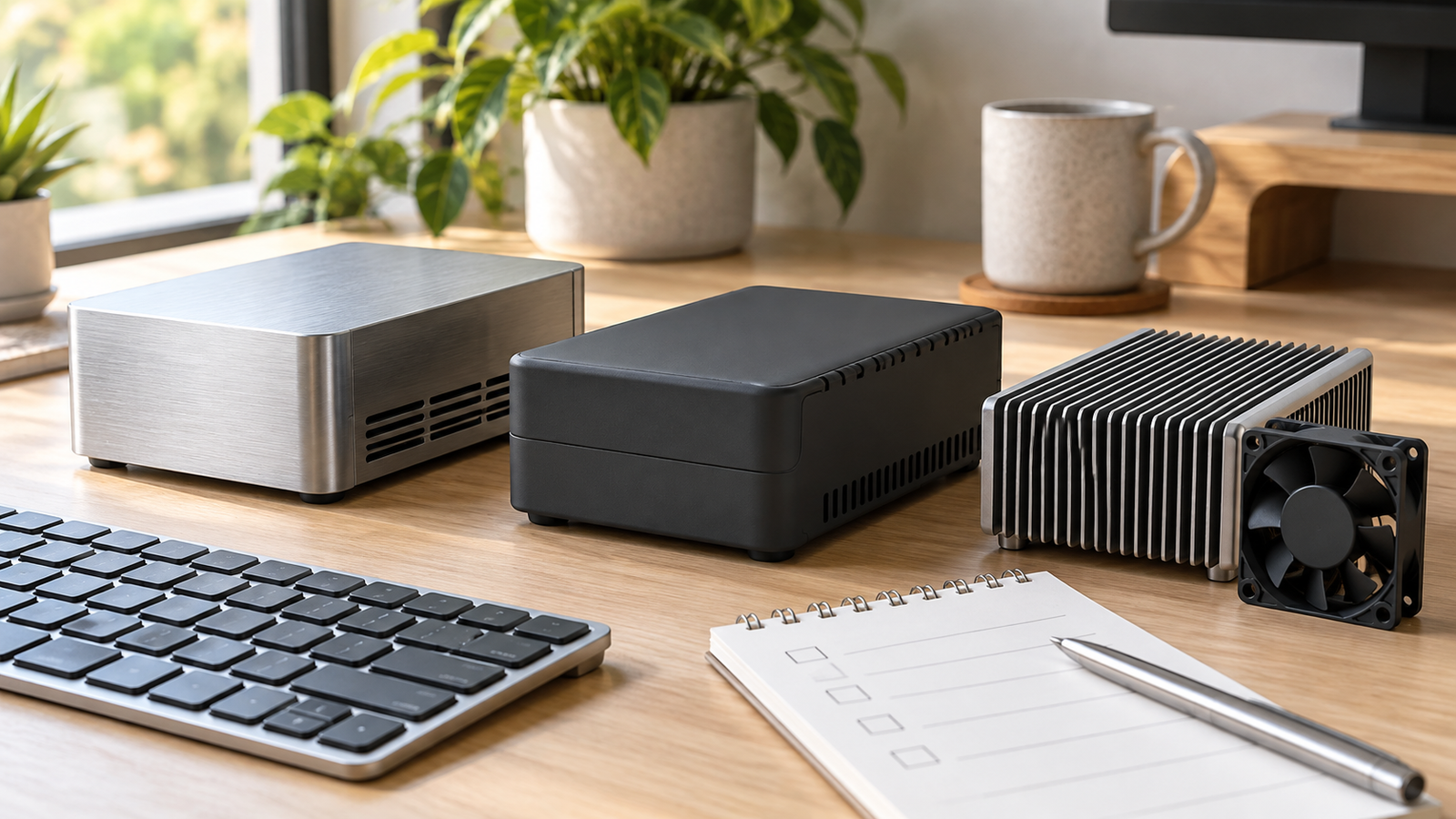
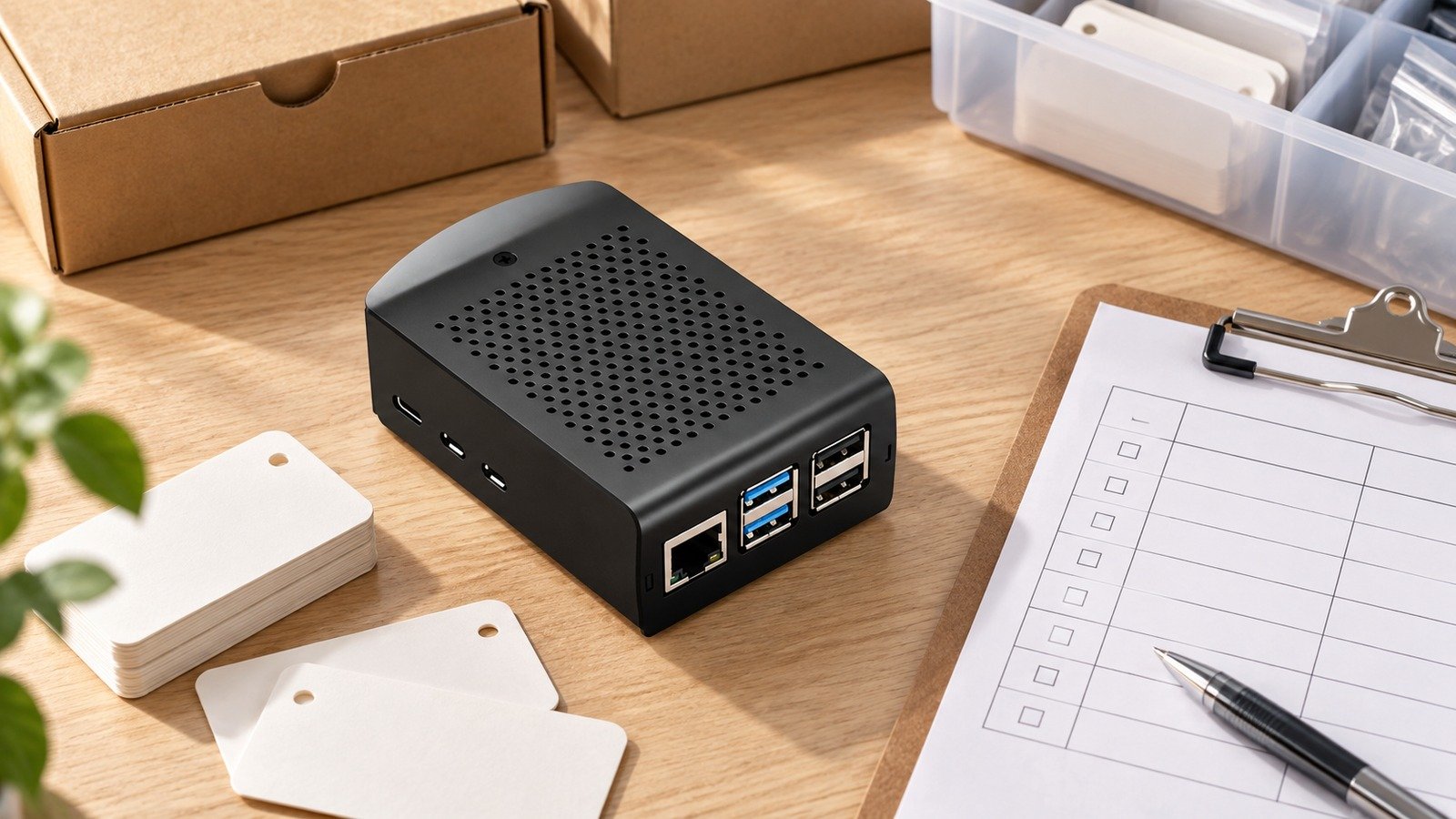
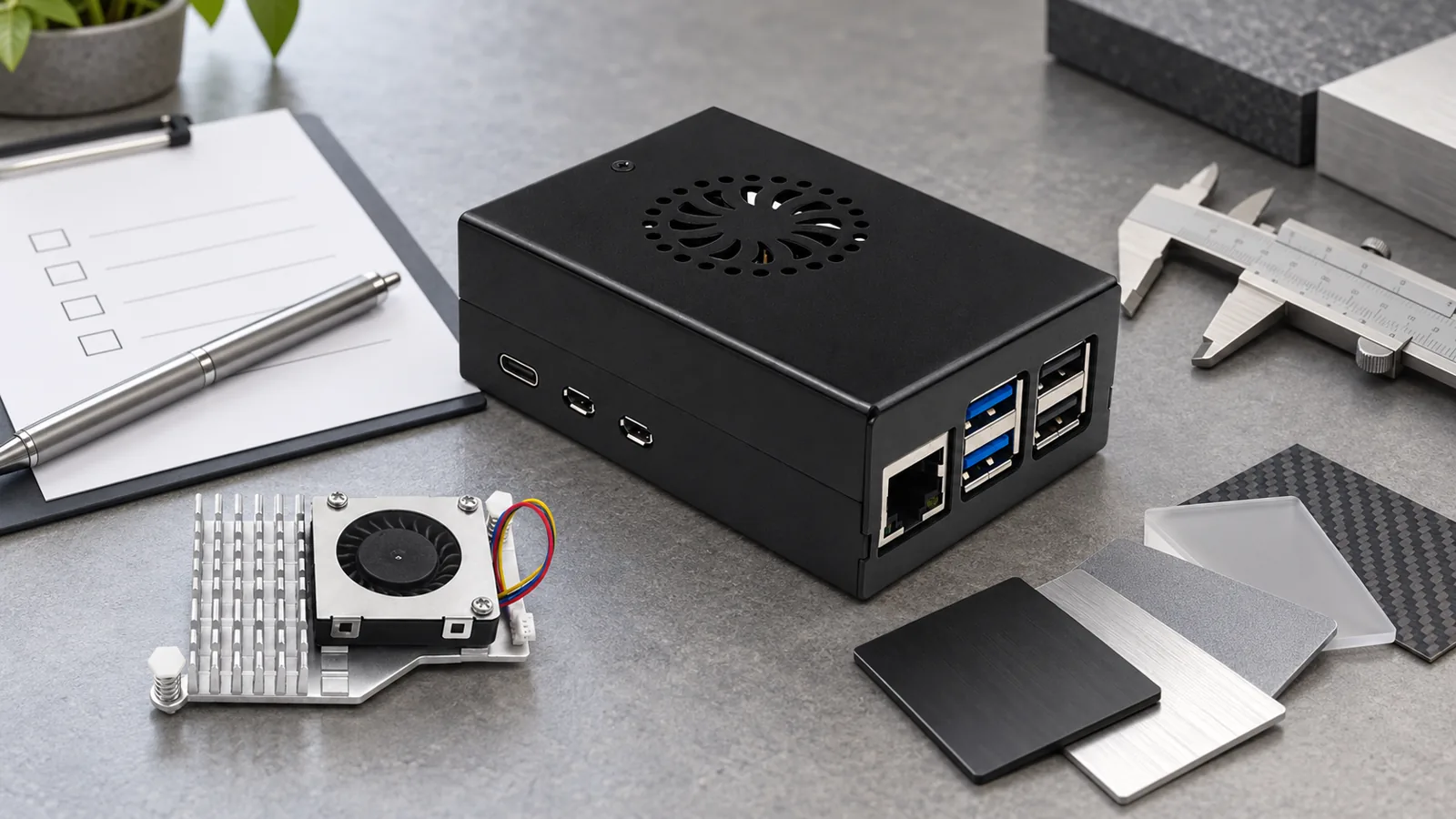
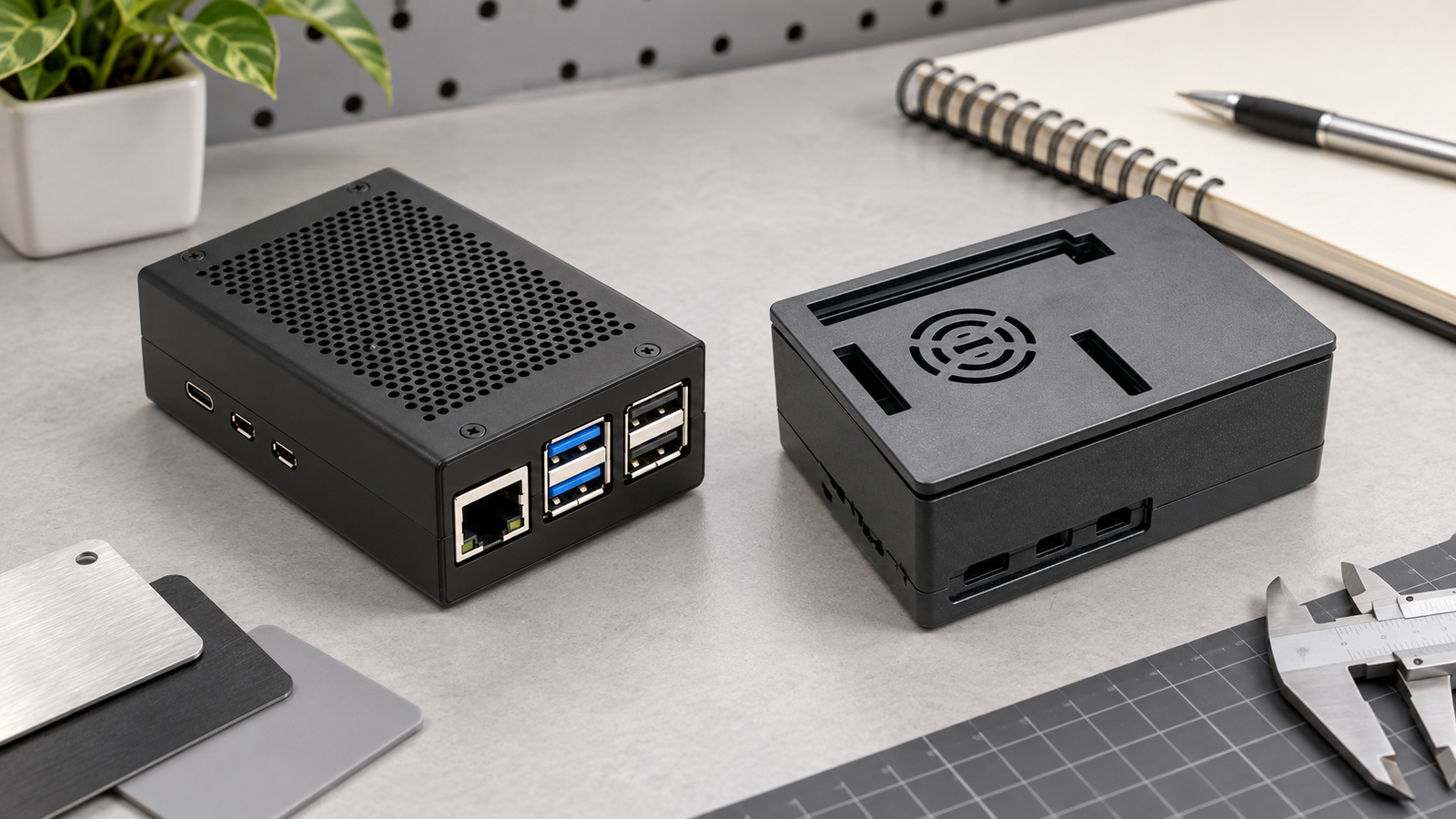
- While optional, a case can protect your Raspberry Pi and add aesthetic appeal.
Optional accessories, like cooling fans and heatsinks, can double performance. This is particularly the case if you plan to use the Raspberry Pi for heavier workloads.
2. Download Twister OS Image
Ready to give it a go? Head on over to the official Twister OS website to get started. Be sure to grab the latest version that is compatible with the Raspberry Pi 5!
Choosing the right image is critical to make sure installation goes smoothly. Once downloaded, check that you have a good download by checking the file’s integrity against our checksums located on the downloads page. This avoids complications when installing and makes sure you’re using a valid copy.
3. Prepare SD Card
In order for Twister OS to load correctly, the SD card needs to be formatted the right way ahead of time. First, format the card to FAT32 using a trusted application on your PC.
This step removes any old data and makes sure the card is set up fresh for the new OS. Be sure to save any important information, as formatting will erase all of it.
For best performance, we recommend using a Class 10 or better SD card. It offers higher transfer read and write speeds!
4. Install Twister OS
Now that your SD card is prepared, it’s time to flash the Twister OS image using Balena Etcher. This free tool is simple and easy to use.
Open Balena Etcher, select the Twister OS image you downloaded earlier, and select the SD card drive as the target drive. When you are ready, click “Flash” to get started.
Be sure to let the process complete all the way. This will prevent you from corrupting the installation when pulling the SD card.
5. Initial Setup Process
After installation, boot your Raspberry Pi with the SD card inserted. After the boot sequence is completed, just follow the on-screen instructions to complete the initial setup.
Select your language of choice and set up your Wi-Fi connection to get online. Setting a strong password at this point improves safety.
Users have the option of setting the memory split between the CPU and GPU. This means they can make it more specific to how they plan to use the Raspberry Pi.
Configuring Twister OS Settings

Leaping into Twister OS on a Raspberry Pi 5 brings a whole new level of customizability to the table. The settings menu is your one-stop shop for customizing the system to conform to your individual tastes. You can configure nearly every detail of your desktop’s look and feel.
In addition, you can start to address creating a stable network connection. This is what makes Twister OS unique: its amazing versatility. It serves the needs of a huge range of users and, in turn, is almost unmatched as a multipurpose operating system. Let’s take a closer look at how you can get the biggest bang for your buck.
Customize User Interface
If you’re eager to dive into customization, the settings menu provides an easy avenue to get started. Modifying the default desktop theme is a good start. This does two things: it not only makes it feel more personal but makes your user experience even better.
Just head over to the themes area and check out all the possibilities! Moving your app shortcuts around on your desktop is yet another way to customize your experience. By putting your most essential applications directly in your line of sight, you cut down the time spent searching and help increase your productivity.
Try out various UI tweaks, such as changing icon sizes or where the widgets are located. That’ll allow you to find the most comfortable configuration personalized to your workflow. For instance, some users might prefer a minimalist layout, while others enjoy a more detailed display with additional widgets like Conky, which can be added to autostart using conky -q -d -p 3.
Set Up Network Connections
Connecting to the internet is important for downloading online resources and updates. Start with a checklist for Wi-Fi setup: enter the network name and password, and ensure your Raspberry Pi is within range of your router.
One of the coolest things about Twister OS is that it comes with a powerful suite of connectivity troubleshooting tools built right into the settings menu. If your Wi-Fi just isn’t doing it, think about a wired connection. This is the most cost-effective option, providing reliable, high-speed internet connectivity.
This is especially useful when downloading large files or streaming HD videos without buffering.
Manage Software Applications
Accessing the Twister OS patcher tool is your gateway to expanding the capabilities of Twister OS. Installing new applications is a great way to improve both your productivity and entertainment options. For best performance and security, make it a habit to keep installed software up to date, including the latest patch notes for your preferred version of Twister OS.
Updating Twister OS itself is equally important. Check for updates right after booting up the system to ensure you're running the latest version. Unused applications can create a messy user experience as well as take up valuable disk space, so it's beneficial to regularly review your installed applications.
More than their expense, removing them is fairly simple and can greatly enhance system efficiency. To reinstall PlayOnLinux, use the command sudo apt install playonlinux. Then run sudo apt remove wine to remove the old Wine version and prevent conflicts with the new version of Wine.
Benefits of Using Twister OS
Enhanced User Experience
Twister OS really excels with its user-friendly UI overhaul, which has made it a go-to for anyone just getting started, as well as seasoned veterans. It offers a very nice and polished desktop version environment. You’ll be instantly at home, just like you would be on a Windows or macOS system, making it a favorite among users of various OS versions.
This makes newcomers to Linux feel more comfortable, facilitating a smooth update process that cuts down on the intimidation factor associated with Linux systems. Navigation is clean and easy, aided by accessibility features that enhance the usability of the OS for almost anyone.
The welcome wizard simplifies the initial setup process. This simplicity reflects the overall ease of the Raspberry Pi OS, making it all the more useful for new users who may not be familiar with complicated hacks.
The aesthetic charm of Twister OS should not be overlooked. The sleek, modern interface is entirely customizable, with various themes and layouts allowing for personal expression. Users can choose a desktop environment that mimics the Windows 10 interface or one that resembles macOS, enhancing their experience with preferred versions.
The best part is that you can flow effortlessly between the two! This flexibility makes the device more aesthetic and functional. It gives users the power to make their own OS based on their individual needs and choices.
Versatility and Flexibility
Twister OS is proof of this versatility, skillfully catering to diverse projects from gaming to productivity. Read on to discover its versatility in everyday tasks. Whether you just want to play some games or run an advanced development environment, it’s the perfect platform for you.
The huge library of pre-installed applications—everything from retro gaming emulators to office productivity suites—saves tons of time and frustration. With a simplified installation process, it takes up to 90% less time to set up than Raspberry Pi OS. Today, you can hit the ground running with all of your projects!
One of Twister OS’s biggest strengths is its compatibility, supporting a huge range of software packages. Twister OS provides a fantastic environment that increases utility and productivity exponentially while implementing Box86 to run Linux x86 programs.
Explore a multitude of different utilities and feel the benefits for yourself! This flexibility makes it possible for the operating system to meet both creative and business needs impressively.
Access to Multiple Desktop Environments
Twister OS is packed with surprises, from its lively aesthetic to the various desktop environments. Users can fully swap between them at their leisure to reap the benefits of both worlds. All those things are pretty cool, but having the option to switch between a Windows-like or macOS-like interface truly enhances the experience, especially with the twister os Patcher application providing smooth updates and customization options.
Alternatively, if you’re more performance-minded, you can pick lightweight alternatives that ensure seamless task performance on a Raspberry Pi 4 without any lag or latency. This flexibility allows users to explore different twister os versions, helping them find their ideal setup while improving performance on highly specialized tasks.
Incentivizing users to explore these other environments not only helps users find their ideal setup, but improves performance on highly specialized tasks. This decision gives users the control to customize their system environment to optimize what’s important to them, making for a more enjoyable computing experience.
Use Cases for Twister OS on Raspberry Pi 5

Educational Purposes
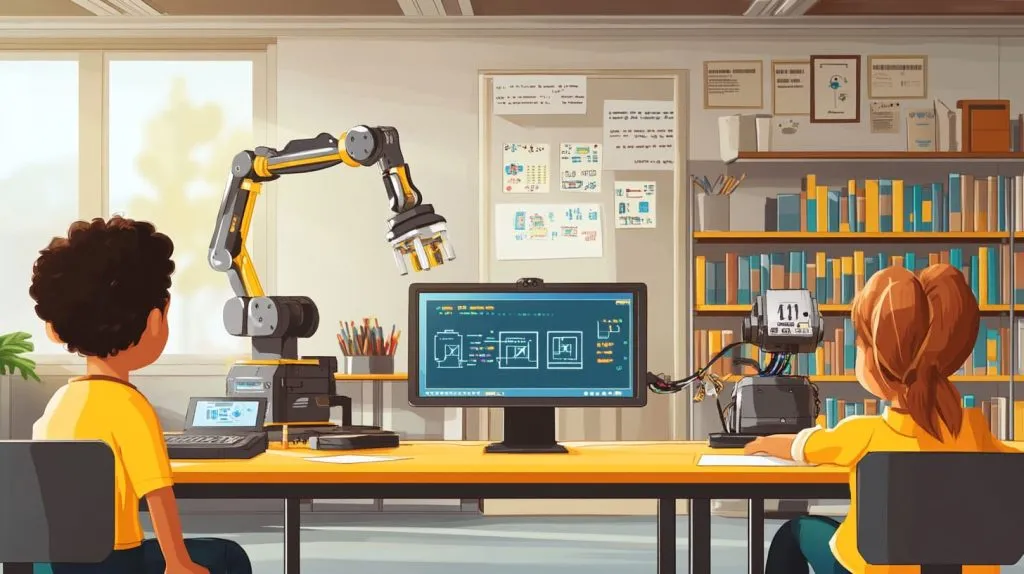
Twister OS on a Raspberry Pi 5 provides a rich environment for educational use, particularly in the fields of programming and robotics. In educational settings, it’s a cost-effective solution for teaching programming and advanced computer skills.
The interactive and intuitive GUI allows students to seamlessly start learning how to code in Python and C++. This environment promotes their curiosity while supporting them as they develop their technical skills.
Because Twister OS is compatible with tons of STEM projects, it helps promote the idea of learning by doing. Students can jump right into hands-on robotics projects to reinforce what they’ve learned in the classroom.
This immersive experience increases their comprehension and retention of advanced concepts. In addition, the abundance of educational software that is straightforward to install on Twister OS helps foster varied learning experiences.
This goes for applications built for coding practice, computational thinking, and even game development, creating an engaging learning environment that is accessible and fun.
Home Automation Projects
Twister OS goes beyond simple productivity and entertainment projects and unlocks an entire world of home automation projects. Whether it’s using voice commands or dedicated smart home applications, the conveniences are endless.
This allows you to control your lights, security systems, and thermostats with utmost convenience. If you’re excited about the potential of the Internet of Things (IoT), Twister OS simplifies connecting your IoT devices.
Experience the comfort of a fully connected home ecosystem! Thanks to this integration, you can control basic tasks, like changing the color of your lights.
It can handle advanced automation sequences that react to user occupancy or time of day. With Twister OS, you can easily deploy systems customized to your specific requirements.
Twister OS helps you get things done, so you can automate your morning routine with a few simple clicks. It helps you establish a smart garden so you can grow your groundbreaking ideas.
Media Center Setup
Twister OS pretty much turns the Raspberry Pi 5 into a powerful media center. Through careful configuration of the right applications such as Kodi, users can experience the best of media consumption.
Thanks to the power of Twister OS, you can stream entertainment from Hulu, Netflix, and more. Seamlessly watch your favorite films and programs and listen to your music!
In addition to streaming services, you’ll be able to play local media files. This handy feature makes it a one-stop hub for all your entertainment.
By connecting to external storage devices, you can easily expand your media libraries. Now, you have virtually limitless access to enormous media libraries with just the click of a button.
Twister OS is ideal for all media lovers who want to create their very own customized media center. It offers fantastic utility and an engaging multimedia experience.
How to Use Twister OS Effectively?
Setting up Twister OS on a Raspberry Pi 5 is a fun journey. You’ll immerse yourself in an environment deep and vibrant, recreating the desktop experience you’ve come to expect from conventional operating systems. To start, you’ll want to get used to the overall design and tools at your disposal, including the Twister OS patcher application for smooth updates.
The interface feels very comfortable and easy to use. You can find applications from the start menu or through the app drawer. Get started with this configuration to familiarize yourself with navigating the system. This is how you get the most out of your preferred version!
By checking for updates on a regular basis, including mesa updates, you can help the system run smoothly, maintaining optimal performance and security. Whatever your obstacle, the community forums are a godsend, providing a veritable goldmine of advice and assistance from other users.
Explore Pre-Installed Applications
Twister OS is loaded with a wide selection of pre-installed applications created to meet most any needs right out of the box. Important applications include Chromium for web browsing, LibreOffice for document handling, and VLC for media playback. These applications are directly available from the start menu, allowing for a smooth user experience.
Getting people to play around with these apps can show their power, whether it’s video editing with Kdenlive or gaming through Steam. If you run into problems with Steam, try updating Box86 from the "Games" menu first. Navigating this adventure will allow you to tailor the system to your individual needs, maximizing productivity and fun.
Utilize Built-In Tools
If you like to dig a little deeper and play with system functionality, Twister OS has a toolbox of system tools included. For advanced users, the terminal is a great asset as it provides direct command-line access to the system. Performance monitoring tools, such as Task Manager, offer a glimpse into your system performance, commonly displaying CPU and memory utilization.
Detailed diagnostic scripts are another new feature, providing guided fixes for typical issues. So, if you are experiencing screen tearing, the latest Mesa 20.3 Updater installation should do the trick. You can improve your system monitoring by installing Conky to get real-time system stats. Simply go to Menu > Settings > Session and Startup and add it as an autostart application.
Optimize System Performance
Performance optimization on Twister OS is largely a matter of effectively handling the system’s resources. One of the best and easiest methods is to disable unwanted startup apps, which can greatly reduce boot times. Regular maintenance practices, like clearing the cache and keeping software up to date, are essential for ensuring the system remains responsive, especially when using the Twister OS Patcher application to manage updates.
Installing updated packages such as XFWM4 or utilizing the Twister OS Patcher found in System -> Preferences can enhance performance. If you plan on using Wine, begin by downloading the package. Then, unpack it and run the binary from the wine/bin directory.
Reinstalling PlayOnLinux using sudo apt install playonlinux && sudo apt remove wine will help avoid compatibility issues for some applications, ensuring a smooth update process.
Conclusion
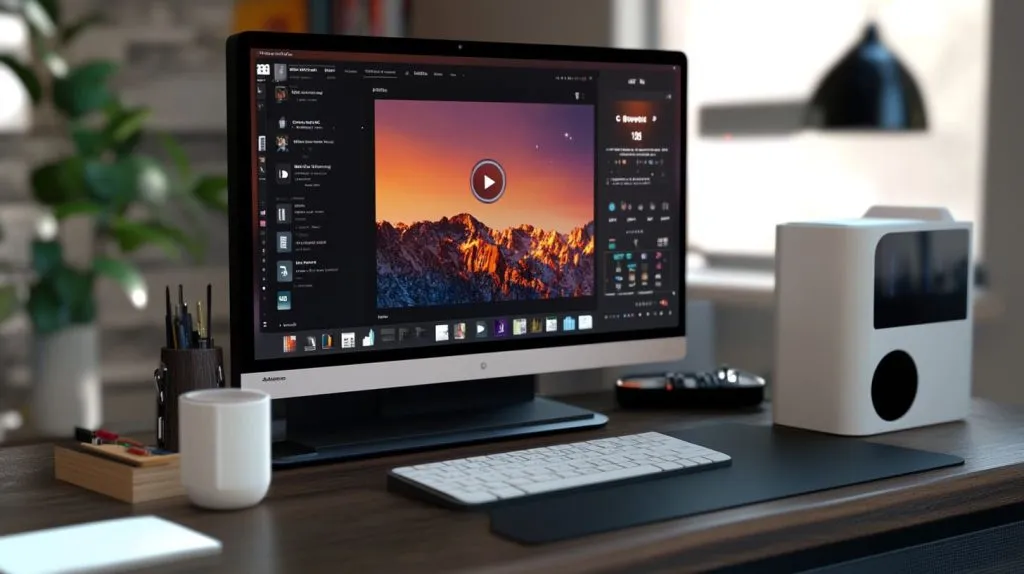
The bottom line is that together, they combine to provide you with a beautiful and powerful experience. Twister OS transforms your Raspberry Pi experience, making it much more fun and useful! You can configure it so simply, but it’s so powerful for so many tasks. Whether you’re into gaming or programming or simply require a versatile operating system for everyday use, Twister OS feels at home. Explore the limitless possibilities of this powerful pair and watch your creative endeavors soar. Give it a test run and experience the difference. Stay ahead of the curve with emerging tech trends and seize this opportunity to discover new potential. Engage with our maker community and let us know what you create. Continue to grow and learn on this exhilarating tech journey.
Frequently Asked Questions
What is Twister OS?
Twister OS is a custom operating system based on Debian explicitly designed for Raspberry Pi. It provides a Windows-like desktop environment complete with a suite of pre-installed applications. It’s ideally suited for users looking for a classic desktop experience on their Raspberry Pi.
How do I install Twister OS on Raspberry Pi 5?
Initially, you need to download the Twister OS image file from the official operating system website. Then, use a tool like Balena Etcher to flash it onto a microSD card, and you’re ready to boot up your Raspberry Pi 5 with the Twister OS patcher application.
What are the benefits of using Twister OS?
Twister OS offers a beautiful, user-friendly interface and a suite of pre-installed applications, making it a top choice for users transitioning from Windows to Raspberry Pi. With the Twister OS patcher application, users can enjoy a smooth update process and a desktop-like experience.
Can I customize Twister OS settings?
Indeed, Twister OS versions come with a treasure trove of configuration options, allowing you to customize themes, change display settings, and install preferred applications with ease.
What are some use cases for Twister OS on Raspberry Pi 5?
They are used for home computing, media centers, retro gaming, and even education. With its many features and flexible interface, Twister OS is a great choice for any project.
Why should I choose Twister OS over other operating systems?
Opt for Twister OS, a preferred version that combines Windows-like looks with Linux power, making it a favorite desktop OS for Raspberry Pi users. Its user-friendly interface simplifies the smooth update process, enhancing the traditional desktop experience.
How can I use Twister OS effectively?
To use Twister OS effectively, explore its features, customize it to your liking, and utilize its pre-installed applications. Keeping the system updated with the latest Twister OS patcher is crucial for performance and security.
Leave A Comment