 Skip to content

Key Takeaways
You can use the command line to determine which Raspberry Pi model you own. Just type in the command
cat /proc/cpuinfoand look for the “Revision” code. Then, consult the official Raspberry Pi documentation to identify your model.Physically looking at your Raspberry Pi can also help you determine which one you have. Look for labels or other distinctive things. Look for how many USB ports it has and if it has a Wi-Fi chip.
Software tools like lsb_release -a can collect additional system information. If you have the Raspberry Pi, consult its packaging and documentation.
If you run into problems identifying it, check that your Raspberry Pi's firmware is updated; older versions may not report the correct information.
Check your connections and power supply to troubleshoot. If the setups are wrong, it can misidentify or lead to errors with system information.
Always use official Raspberry Pi resources for the most accurate and up-to-date information about identifying models and specifications.
One way to learn exactly what Raspberry Pi model you have is through the command line. This simple process gives power to both the geek and the executive. We’ll also show you the specific commands to determine your device. That way, you’ll have all the information you need at your fingertips. For those who want to do it the old-fashioned way, we're going to talk about physical inspections and checking labels. If any challenges arise, our troubleshooting tips can help. Knowing which model of Raspberry Pi you have is important when it comes to getting the most out of your projects or setups. We’ll break these steps down step-by-step and take some time to dig into the details.

Check Raspberry Pi Model Command Line
1. Use Terminal Commands
To determine the exact board model of your Raspberry Pi, begin by opening the terminal. This crucial step allows you to execute specific commands that query the hardware details of your system. The easiest method to identify which Raspberry Pi version you have is by running the command `cat /proc/cpuinfo | grep Model`. This command retrieves the model name directly from the CPU info, ensuring precise identification of your Raspberry Pi board. Additionally, you can use the command `cat /sys/firmware/device-tree/base/model,` which reads from a file listing the details of your Raspberry Pi, including its generation and revision numbers.
For more comprehensive insights into your system's kernel version and CPU architecture, type `uname -a`. This command provides a high-level overview of your system's technical specifications, including the CPU variant and other essential details. Understanding these specifications can help you appreciate the capabilities of your Raspberry Pi.
vcgencmd measure_temp – Check current CPU temperature.
Free -h – To get the amount of free and used memory in the system.
Df -h - To show disk space usage on all mounted filesystems.
Here is a list of useful commands for identifying other hardware specifications: these commands are incredibly valuable if you want to learn more about what your Raspberry Pi can do and how to set it up effectively, especially when considering various accessories and expansion boards for your computing projects.
2. Identify Board Characteristics
Terminal commands provide deep internal data about various Raspberry Pi boards. Reviewing the physical attributes of your Raspberry Pi may enable you to identify your exact board model. Begin by looking at the board position for anything interesting, such as the count and types of USB ports; different Raspberry Pi versions may have different amounts or types of ports. Pay attention to specific chipsets, like the bcm2835 or bcm2836 that may be exclusive to certain models. Recording these characteristics could be beneficial for debugging peripheral or software incompatibility later.
3. Examine System Information
Collect complete system details with commands such as lsb_release -a. This command simply divulges what operating system is currently installed on your Raspberry Pi board, including the distribution name and version, which are vital for compatibility with various applications and updates. Additionally, examining RAM capacity and CPU architecture can provide insights into the performance potential of your specific Raspberry Pi model. By running vcgencmd get_config int, you can access more configuration information that could influence your use of the device.
You might want to organize this information into a table to compare it side by side with different Raspberry Pi boards. This organization makes it easier to identify the exact board model you have and understand its potential restrictions or benefits, especially when considering upgrades or expansions with various accessories.
Physically Identify Raspberry Pi Model
Inspect Physical Features
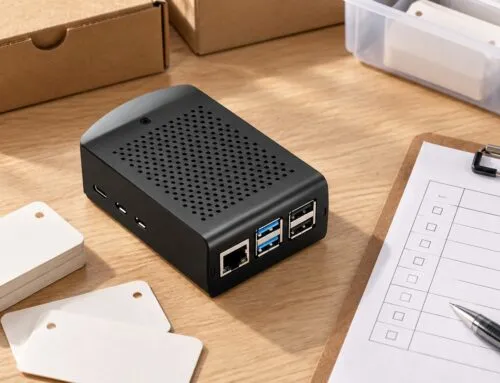
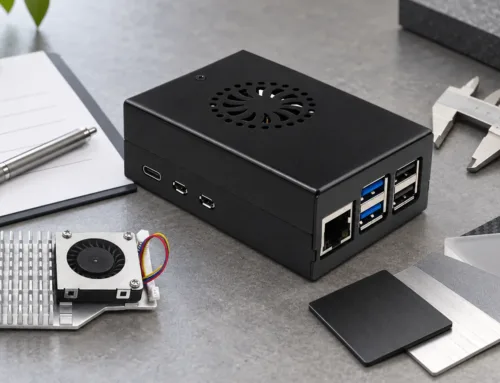
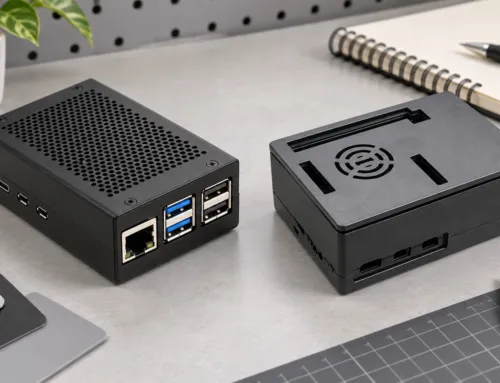
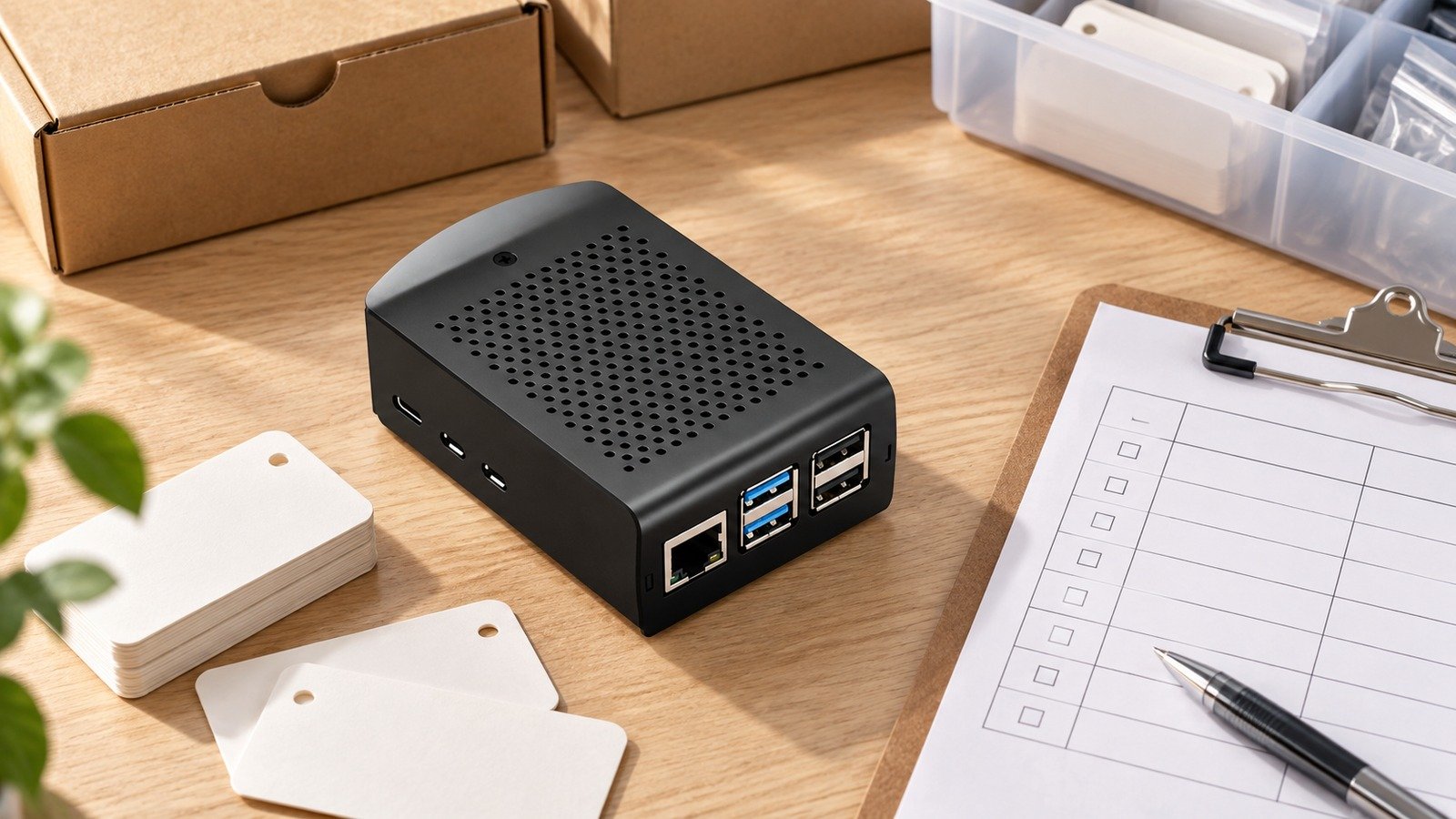
If you're trying to determine which Raspberry Pi board you have, the physical characteristics of the board itself can provide some hints. One of the first things to look at is the type of USB ports available. Different versions of Raspberry Pis have varying USB setups; for instance, some models feature USB 2.0 ports, while others come equipped with blue USB 3.0 ports that offer faster data transfer speeds, enhancing the overall performance of your computing project.
Next, check the HDMI port type, which varies considerably between Raspberry Pi generations. Older models typically included a full-sized HDMI port, while the newer Raspberry Pi versions often feature a micro-HDMI or mini-HDMI port. This change reflects the advancements in design and functionality across the Raspberry Pi family.
The presence or absence of an Ethernet port is another significant difference. More recent models, including the Raspberry Pi 4, have a Gigabit Ethernet port, making it easier to connect to networks. In contrast, smaller models like the Raspberry Pi Zero series lack an Ethernet port altogether, highlighting the basic differences in connectivity options.
Pay attention to the distinctive physical features of the device, especially the GPIO (General Purpose Input/Output) pin configurations. If the board has onboard components like wireless chips, these can be distinguishing marks of certain models. For instance, the Raspberry Pi Zero W v1.1 has a label on the underside of the board that reflects its model identity, cleverly hidden behind the GPIO holes.
To streamline your identification process, consider creating a checklist of these physical features. This should provide sufficient guidance for accurately identifying your Raspberry Pi model, ensuring you know exactly which version of this versatile computing device you are working with.
Read Device Labels
To further confirm your Raspberry Pi model, look for any labels or stickers on the Raspberry Pi board itself. Sometimes manufacturers print model numbers directly on the PCB (Printed Circuit Board). You will typically find those numbers above or around the CPU area, providing essential details about your device's specs, including the CPU architecture and compatible processor rev.
You can also gather useful clues by checking the packaging. If your box says "Raspberry Pi 3," you likely have that specific Raspberry Pi version. Keep in mind that smaller models, such as the Raspberry Pi Zero 2, usually don't come in standard boxes; instead, they are often sealed in somewhat translucent anti-static bags, which can be a bit tricky for identification.
Creating a visual reference to identify labels on different Raspberry Pi boards can be beneficial. This approach makes it easier to see all models at once, helping you understand the basic differences and how the various Raspberry Pis work differently, enhancing your knowledge of their unique features and capabilities.
Examine Packaging Details
Examining the original packaging of your Raspberry Pi boards can provide further hints regarding their model number and capabilities. The packaging frequently emphasizes important information, highlighting model-specific details and unique features that separate one Raspberry Pi version from another.
You might also look for barcodes or QR codes on the packaging, as they often link to online resources containing detailed product specifications. Any included documentation typically has clues about your Raspberry Pi's model name and functional characteristics, which can be particularly useful for identifying older Raspberry Pis or different models in the Raspberry Pi family.
Keeping this packaging can help you back up any warranty or support questions you might have down the line. It serves as a quick reference point if you need assistance or want to double-check product information at any time, ensuring you have all the details about your Raspberry Pi's capabilities and accessories.

Alternative Methods for Identification
Check for Receipt Information
You can easily identify where your Raspberry Pi is from by looking at your purchase paperwork. Start with the receipt or email confirmation you received at the time of purchase. This document will usually have the model number, which you can then cross-reference with the physical device you have on hand. If you bought the Raspberry Pi a while back, check the purchase date. This will help you determine if your model is one of the older versions. A digital copy of this receipt helps you identify your purchase right away. It also protects you from warranty claims and future reference. This practice allows you to always have the crucial information on hand without having to memorize technical commands.
Consult User Manuals
Another useful resource for recognizing your Raspberry Pi version is the user guide that comes with the device. These manuals also include diagrams with descriptions that highlight the differences between each Raspberry Pi model. Look to these guides to get a clearer picture of what your Raspberry Pi boards can do. This understanding is essential for harnessing its power in your applications, especially when comparing CPU power and RAM throughout the various models. By keeping the manual nearby, you have an easy reference for troubleshooting and setup tasks, ensuring you don’t have to reach far for complete support. The user manual is crucial for checking certain hardware features and key details related to your Raspberry Pi's capabilities.
Troubleshooting Identification Issues
Verify Power Supply and Connections
If you're having issues getting your Raspberry Pi board to recognize your identity, the first thing you need to do is check the power and connection. Each Raspberry Pi version has specific power requirements, and it's crucial to ensure the power supply meets these needs to avoid performance issues. For instance, a Raspberry Pi 4 requires a 5V/3A USB-C power supply, while older Raspberry Pis may utilize micro-USB connectors. Verify all connections to peripherals and devices to confirm compatibility, as incompatible connections can lead to misidentification or errors.
Signs of power issues may include unexpected shutdowns, overheating, or failure to boot up, which can prevent accurate recognition of your Raspberry Pi. To address this, create a checklist of power supply specifications for different Raspberry Pi boards. This systematic approach not only clarifies the power requirements but also ensures everything is functioning correctly before relying on software to identify components. By doing so, you can enhance the performance and reliability of your Raspberry Pi computing project.
Use Online Resources and Communities
Utilize online resources and communities to help troubleshoot Raspberry Pi identification problems in the digital age. The official Raspberry Pi website provides extensive details about the different versions of Raspberry Pi boards and their specifications. Join online forums like Stack Exchange or Reddit to share your experiences with various Raspberry Pis and learn from users who have dealt with similar issues regarding model numbers and compatibility reasons.
In-depth video tutorials and guides on platforms such as YouTube demonstrate practical identification techniques for Raspberry Pi boards. They provide visual step-by-step directions, which are especially useful for visual learners interested in the Raspberry Pi family. Putting together a list of trusted online resources means you have reliable references for future troubleshooting or learning opportunities related to Raspberry Pi and its accessories.
If you have ongoing identification issues with your Raspberry Pi model, reach out to these communities. Document any discrepancies you find during your identification process, especially concerning the CPU architecture or specific model names. Sharing these findings with knowledgeable peers can open the door for collaborative problem-solving, enhancing both your understanding and the collective knowledge of the global Raspberry Pi community.

Conclusion
Okay, folks, there you have it. We’ve already jumped into the details about how to identify your Raspberry Pi model, both through the command line and some other useful methods. Knowing your Pi’s model can save you a lot of headaches. This knowledge can be particularly useful when you're in the middle of a project or trying to resolve a problem. With these steps under your belt, you’ll sail through any identification hiccups. Whether you're a tech whiz or just starting out, you'll handle it like a champ. Now, it’s your turn to get to work with this information. Fire up your Raspberry Pi, run those commands, and you’re finally getting your hands dirty with the tech. You’ve got questions, and you need more tips. Don’t be shy. Get in touch — let’s continue learning and discovering!
Frequently Asked Questions
How do I check my Raspberry Pi model from the command line?
Use the command cat /proc/cpuinfo to check the cpu revision. Cross-reference it with official Raspberry Pi documentation to identify your exact board model.
Can I identify my Raspberry Pi model without using commands?
Yes, check the raspberry pi board for a printed model number, which is typically located near the GPIO pins or on the back of the board.
What are alternative methods to determine my Raspberry Pi model?
Try using software tools such as Raspberry Pi Diagnostics or third-party apps to gather detailed hardware information about the specific Raspberry Pi board model.
Why can't I find my Raspberry Pi model using commands?
Make sure your OS, particularly the official Raspberry Pi OS, is updated. Some older OS versions may not recognize newer Raspberry Pi boards. Check your internet connection for essential updates.
Is there an easy way to visually identify different Raspberry Pi models?
Yes, you can compare your Raspberry Pi board's physical features with pictures from the official Raspberry Pi website. Look for differences in port layout, size, and other details to identify the exact board model.
What should I do if I'm still unsure about my Raspberry Pi model?
Seek out online forums or Raspberry Pi communities. Many users share stories and insights about different versions of Raspberry Pi boards, helping you identify your exact board model based on descriptions or pictures.
Are there any risks in misidentifying my Raspberry Pi model?
If you identify incorrectly, particularly with different versions of the Raspberry Pi boards, you could install incompatible software. Always check what you find with several sources to see if it works the way you want it to.
Leave A Comment