
If you’re looking for a simple, practical, and effective way to access your computer remotely, Raspberry Pi Remote Desktop is the perfect answer. Using this configuration, you’ll be able to access your home or work computer from anywhere, making a productive on-the-go experience a reality.
It’s simple, giving you the ability to manage your desktop with speed and precision. As someone who values technology and accessibility, using Raspberry Pi Remote Desktop can greatly enhance your computing experience with its dependable performance and straightforward operation.
What is Raspberry Pi?

The Raspberry Pi is unique as a fun, small, affordable computer that opens the door to a world of creativity, exploration and discovery. This credit-card-sized marvel is designed to fit snugly in the palm of your hand. It has democratized computing for hobbyists, educators and tech enthusiasts around the globe.
It has become a platform where learning how to program, build your own robots, and design your own smart home systems are all possible and fun. Raspberry Pi surged ahead, selling more than 30 million units worldwide by 2020. Raspberry Pi isn’t just a computer, though. It’s a dynamic, community-driven project that encourages exploration and ignites creativity in programming and electronics.
1. Definition and Purpose
Raspberry Pi serves as a broader platform for anyone, particularly students, who wish to explore the world of programming and electronics. It’s a great launching pad for developing Internet of Things (IoT) applications and home automation projects. Now, users can more easily make technology part of their everyday lives.
Enthusiasts enjoyed using it to create media centers that stream content. They look to it for retro gaming consoles that breathe new life into their beloved classics. Its versatility is most evident across the arts. It deepens formal educational use and informal maker and industrial use, making it an indispensable tool for innovation and creativity.
2. Key Features and Capabilities
Where the Raspberry Pi really shines is in its General-Purpose Input/Output (GPIO) pins. These GPIO pins offer powerful hardware interfacing features, enabling you to connect various sensors and devices with ease. The inclusion of several USB ports means you can hook up a variety of peripherals to expand its capabilities.
The built-in Wi-Fi and Ethernet connectivity means hassle-free internet access. This is what makes it the ideal platform for projects that require access to internet-based resources. The microcontroller supports a wide variety of programming languages. Python and Scratch have emerged as the clear frontrunners, offering a robust educational experience for both novice and veteran coders alike.
This flexibility is what has made it the go-to platform among hobbyists and professionals alike looking for a powerful, customizable computing solution.
3. Popular Uses and Applications
Raspberry Pi finds its place in numerous applications, from home automation systems that control lighting and security to personal web servers hosting websites. Its educational value is immeasurable, frequently employed to introduce children to coding and robotics, inspiring the next generation of innovators and creators.
Things like digital signage projects and NAS (Network-Attached Storage) servers show off their versatility even more. It doesn’t stop there; it continues into industrial and commercial sectors. It is an essential component of every robotics and automation project, and its use is expanding to include space exploration projects.
Its community-driven nature inspires users to share experiences and innovative ideas, constantly broadening its application horizons. With a deeply customizable ecosystem, Raspberry Pi encourages users to tinker with both hardware and software to meet their own specific needs.
Surveys show 71% of users are hobbyists. 21% of them are students, while 8% are working professionals, reflecting the platform’s universal appeal and applicability to any group or individual.
Setting Up Raspberry Pi for Remote Desktop

- Configure your Raspberry Pi for remote desktop access. Proper configuration is key to remote desktop success. Here’s an ultimate guide to get you set up with Raspberry Pi so that you can work remotely.
- Install the xrdp software so that we can use remote desktop protocol (RDP) to connect. Make sure there is an X Windows implementation to provide the desktop display.
Step 5: Set up your network settings, including a static IP address. Enable and configure SSH with X11 forwarding for secure remote access.
Step 5: Set up firewall rules to allow connections through remote desktops. Test for proper installation and configuration.
1. Install Remote Desktop Software
To start, we need to install xrdp. This step is important as it allows the Raspberry Pi to use RDP by emulating Microsoft’s protocol. To do that, simply install xrdp by running sudo apt-get install xrdp in the terminal.
This will download and install all the relevant packages. Make sure to always keep it up to date to prevent potential compatibility issues.
Once installed, check the status with systemctl status xrdp. This command will show you whether or not xrdp is active and running, verifying that your setup is properly configured.
2. Enable SSH with X11 Forwarding
SSH, or Secure SHell, is essential for secure terminal access. For graphical applications, X11 forwarding has to be enabled. To accomplish this, run sudo raspi-config and go to the SSH configuration options, enabling SSH for remote access.
Then, in order to enable X11 forwarding, open the SSH configuration file at /etc/ssh/sshd_config and make sure X11Forwarding yes isn’t commented out.
To check the status of the SSH service, you can use service ssh status, and if it’s not running, you can start it with sudo service ssh start. With this configuration, you can run graphical applications remotely and in a secure manner.
3. Configure Network Settings
For long-term remote access, it is important to set a static IP address. This can be accomplished by telling your DHCP server—commonly the Raspberry Pi itself—by modifying the DHCP configuration file, usually located at /etc/dhcpcd.conf.
Set the static IP, subnet mask, and gateway you want to use. This will make sure your Raspberry Pi always has the same IP, making remote access much easier.
Update your firewall to provide access to remote desktop connections. To change the settings to allow RDP through the firewall, use the command sudo ufw allow 3389/tcp.
Lastly, double-check your new IP address with hostname -I. While not directly necessary, knowing the broadcast address, which is usually a /24 network, can help with wider network setups.
Connecting to Raspberry Pi Remotely

When it comes to connecting to a Raspberry Pi remotely, you have options. Whether you’re using a computer or a mobile device, here’s a list of options that can connect to Raspberry Pi via remote desktop:
- Windows Devices: Utilize the Remote Desktop Connection app.
- Mac Devices: Use the Microsoft Remote Desktop app.
- Linux Systems: Employ rdesktop or another compatible client.
- Connect using dedicated apps such as VNC Viewer or Remote Desktop Mobile.
Before we attempt any remote connection, the first thing to address is making sure your Raspberry Pi is powered on and connected to the network. Remote Desktop Protocol (RDP) tools such as xrdp provide a good, reliable and responsive graphical login experience, even on low-end devices. After using xrdp for several months now, I have found it to be much faster and more reliable, especially with the Raspberry Pi 3.
Access from Windows Devices
Connecting is a simple process using the Remote Desktop Connection app. First, launch the application. Then type in the IP address assigned to your Raspberry Pi, which is used to identify it on your Local Area Network (LAN).
Just be sure that you put in your login credentials correctly. You can adjust the resolution and color depth before connecting to match your needs or bandwidth. This is where xrdp stands out, providing a seamless experience, so it’s a great option for any Windows user.
Access from Mac Devices
For Mac users, the Microsoft Remote Desktop app is the best place to start. Once you’ve downloaded it, open the application and enter the IP address of your Raspberry Pi.
Set the Connection Quality Settings. Open the display and sound settings and change them to improve the performance. Additionally, Mac-specific settings such as keyboard shortcuts or touchpad gestures would improve usability.
Access from Linux Systems
Linux users can install rdesktop or other clients through terminal commands. To connect then run the command to start a session with the Raspberry Pi.
For noobs, I recommend double checking IP settings and making sure you have the right broadcast address, since most networks do the /24 thing. If your credentials are well, it will bring up TigerVNC. This should get you into the GUI interface associated with your username on the Raspberry Pi.
Access from Mobile Devices
For on-the-go remote access, consider these recommended apps:
- Android: VNC Viewer, Remote Desktop Mobile
- iOS: VNC Viewer, Microsoft Remote Desktop
To set up these types of apps, just plug in the Raspberry Pi’s IP address and adjust any connection settings to ensure the most efficient operation. Mobile devices allow you to access your Raspberry Pi from almost any location.
This convenience is great for making cool little interactions and tweaks.
Optimizing Remote Desktop Performance

Here are a few ways you can improve the performance of Raspberry Pi remote desktop connections. Give these real-world methods a shot to help make your RDP experience more responsive!
To start with, make some adjustments to the display settings. Lowering the color depth and resolution is an easy way to improve performance, particularly over lower bandwidth connections. For example, selecting 16-bit color instead of 24-bit will have a significant impact.
Dropping down the resolution to 720p instead of 1080p is another good way to optimize remote desktop performance since it takes up way less bandwidth and CPU. Using desktop sharing protocols such as VNC or SSH tunneling only performs well at speeds of 1-2 Mbps. This is what makes it especially valuable to your work.
Closing unused applications open on your Raspberry Pi is a very basic but very effective way to regain resources. If you have applications running in the background that are CPU or RAM intensive, it will affect your remote desktop experience.
By only having the required applications open, you help eliminate choppy or jumpy sessions.
Improve Connection Speed
Network optimization can make a big difference in improving remote desktop access speeds. A wired connection will always provide a more stable and faster connection than a wireless one. Thus, any time you have the chance, opt for plugging in an Ethernet cable!
Keeping an eye on network traffic can help to find potential bottlenecks. Tools like Wireshark are a great resource for determining problems like high latency or packet loss.
To get even more performance, try NoMachine. It is widely regarded as delivering the fastest performance, particularly when working with complete desktop environments.
Now, install the NoMachine server on the Pi. Then run it with sudo systemctl start nx-os-server, connect from a client, and enjoy a super responsive remote experience.
Enhance Security Measures
Security should be the first thing on your mind when accessing your Raspberry Pi remotely. First, change any default passwords and ensure firewalls are in place to keep out intruders.
Using a VPN also provides an additional layer of security, encrypting your connection and protecting your data. Keeping your Raspberry Pi’s software up to date is essential to safeguarding your device from known vulnerabilities, allowing you to apply security patches as soon as possible.
Adjust Display Settings
Adjusting display settings to your preferences can make a huge difference in your remote desktop experience. Play around with your remote desktop screen resolution and/or Windows scaling to find the optimal view.
By experimenting with various configurations, you can determine which setup works best for you, optimizing performance while still maintaining visual clarity. In particular, using xfreerdp on other platforms can provide you with higher frame rates.
If you’re using Raspberry Pi, you’ll need to change some settings to get the best performance.
Troubleshooting Remote Desktop Issues

When using a Raspberry Pi to access a remote desktop, Windows users can run into a slew of problems with the graphical user interface. Here's a guide to common issues.
- Connection timeouts
- Login errors
- Compatibility issues with remote desktop clients
- Performance lag during sessions
- Security concerns with remote access
- Firewall or port blocking problems
- Ownership issues with .Xauthority file
Resolve Connection Problems
Fixing remote desktop issues begins with troubleshooting login failures and connection timeout errors. Ensure that you have TCP ports 80, 443 and 6568 open in your firewall as well.
Ensure that your firewall is not blocking port 3389. This is an important step as 90% of remote desktop issues are due to firewall or port block.
Second, make sure your remote desktop client is compatible with the Raspberry Pi. If you are deploying with XRDP, check the log file at /var/log/xrdp.log for permission violations or other issues.
A quick restart of the xrdp service may be all that is needed to refresh the connection. You can use the command sudo systemctl restart xrdp to do so.
Ensure that the .Xauthority file in your home directory is owned by you by executing sudo chown pi:pi /home/pi/.Xauthority.
Fix Performance Lag
Lag time when using Remote Desktop can be very frustrating, but pinpointing the source of the lag is your first step to fixing it. For starters, look for any hidden background processes that could be abusing resources.
Optimizing Raspberry Pi’s performance by disabling or limiting these processes can greatly alleviate lag. Disabling auto login has worked for many users in fixing the remote desktop auto login issues.
Choosing a more minimalistic desktop environment further helps with resource management, enabling a more seamless experience. To reconfigure the VNC server, use the Raspberry Pi Configuration tool.
This allows you to optimize the settings to create more efficient connections.
Address Security Concerns
Security should never be an afterthought when you access Raspberry Pi remotely. Keep security protocols and software updated to guard against emerging threats.
One of the best preventative measures you can take is to regularly update your system, closing off vulnerabilities that cyber actors frequently exploit.
Consider the risks, like unauthorized access or data exposure. As a security precaution, to further enhance security, delete group permissions from the video, then re-render the video.
Patching—especially with software updates alone—doesn’t mitigate the risk. This includes setting up robust security protocols and being proactive in monitoring for suspicious behavior.
Keep your remote desktop access secure. Always make sure that your remote desktop access is secure by following these helpful tips.
Conclusion
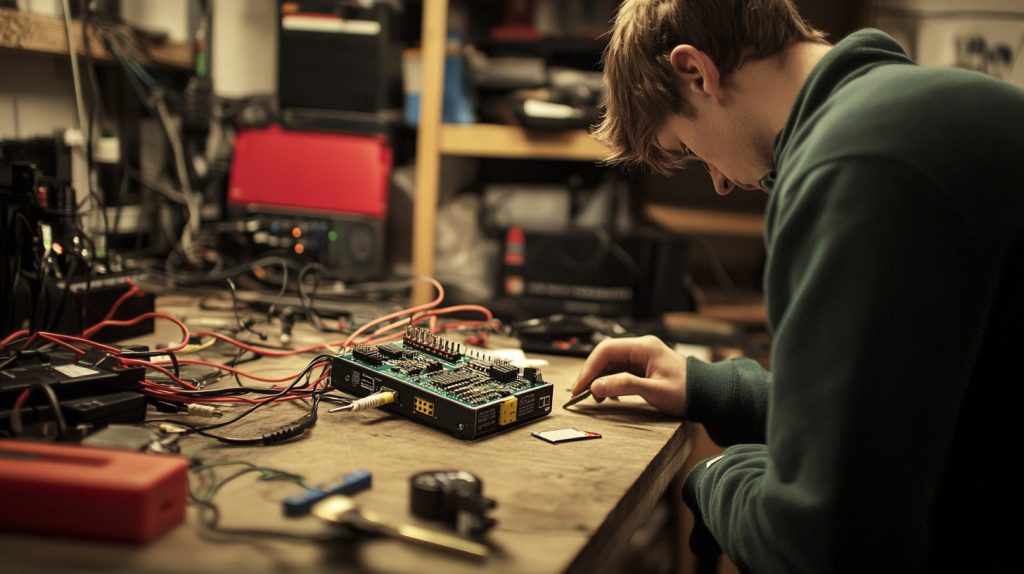
By setting up a remote desktop on your Raspberry Pi, you’ll unlock a whole new world of opportunities. Whether it’s accessing your projects from anywhere in the world or working on the go, this remote desktop configuration creates powerful new possibilities. You get more control over your work environment, and you’re no longer tied to a specific physical location. On top of that, with some optimization, you can ensure the experience is both smooth and efficient. Being able to address frequent hiccups is much more manageable with practical answers. So, this technological journey requires all due courage. Dive in, experiment, and appreciate the ease with which your Raspberry Pi becomes an essential part of your everyday life. Want to learn more and get started? Show us what you’re making and connect with a community of creatives, explorers, and techies just like you. Your Raspberry Pi remote desktop learning adventure starts here.
Frequently Asked Questions
What is a Raspberry Pi?
A Raspberry Pi, called an RP, is a small, inexpensive computer. It’s ideal for STEM projects and learning how to code. It’s the go-to platform for makers, educators, and hackers around the world.
How do I set up Raspberry Pi for a remote desktop?
To get started with remote desktop functionality, install Raspbian OS, enable SSH access, and then use VNC or RDP software to connect, allowing you to access your Raspberry Pi remotely from a Windows PC or mobile device.
Can I connect to Raspberry Pi remotely from any device?
Indeed, you can connect from any Windows PC, tablet, or smartphone device using a VNC service or RDP client. Ensure your Raspberry Pi is powered on and connected to the internet for proper remote desktop functionality.
How can I optimize remote desktop performance on Raspberry Pi?
To optimize remote desktop functionality, ensure a stable internet connection, limit background processes, and use a wired Ethernet connection for better speed and reliability.
What should I do if I face issues with the Raspberry Pi remote desktop?
After that, verify your network connection, ensure that the proprietary remote desktop protocol services like SSH, VNC, or RDP are properly running, and confirm that you are using the correct IP address.
Is Raspberry Pi suitable for everyday remote desktop use?
For basic remote desktop tasks, Raspberry Pi performs just fine with its graphical user interface but isn’t suitable for heavy applications. It’s ideal for light use and education.
Are there security concerns when using Raspberry Pi for remote desktops?
Absolutely, have strong passwords, keep your device and application up to date, and use VPNs to create secure connections on your Windows PC for remote access. This will go a long way toward keeping your remote desktop computer safe from prying eyes.


Leave A Comment